
Complete Setup & License Guide
Your complete resource for installing, activating, and managing Shield Antivirus — powerful real-time protection for Windows & macOS.
Download Shield Antivirus
Latest versions for Windows and macOS. Compatible with Windows 7, 8, 10, 11 and macOS 11+.
Download the installer
Click the “Download for Windows” button above. Save ShieldAntivirus_Setup.exe to your computer (usually Downloads folder).
Run as Administrator
Right-click the file → select “Run as Administrator”. If SmartScreen appears, click “More info” then “Run anyway” — this is normal for security software.
Follow the setup wizard
Click “Install” and wait for the progress bar. Once finished, click “Finish”. Shield Antivirus will launch automatically and start a quick system scan.
Download the .dmg file
Click “Download for macOS” above. Save Shield_Antivirus.dmg to your Downloads folder.
Open DMG & drag to Applications
Double-click the DMG file → drag the Shield Antivirus icon into the “Applications” folder shortcut.
Launch from Applications
Open Finder → Applications → double-click Shield Antivirus. If macOS shows “cannot be opened because developer cannot be verified”, go to System Settings → Privacy & Security → scroll down → click “Open Anyway”.

Activation window — fill in your credentials
🔐 Activation Guide – detailed steps
After installation, unlock all premium features (real-time antivirus, webcam blocker, VPN, dark web monitor). Follow exactly:
- 1. Open Shield Antivirus → click “Activate License” (orange button on the main dashboard).
- 2. Fill in the form with exactly this information:
• First Name & Last Name (as used at purchase)
• Indirizzo email — must match the email used when buying the license.
• License Key — format: XXXXX-XXXXX-XXXXX-XXXXX (20 characters with hyphens).
💡 Copy/paste the key to avoid typos, it’s case-sensitive. - 3. Click “Activate” → wait for green success message: “License activated successfully”.
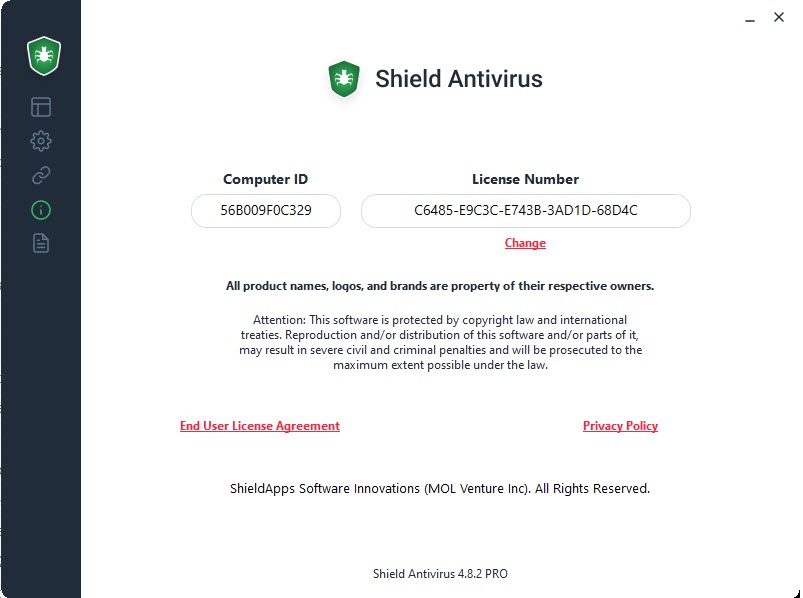
License info panel — check your status and registered email
🔎 Find your License Information
Where to see your license details, registered email, or retrieve a lost key:
- Inside the software: Menu → “My Account” or “License Information”. You’ll see: license type, expiration date, registered email, and number of used devices.
- Purchase email: After buying from thevaperz.com, you received an email with subject “Your Shield Antivirus License Key”. Check spam folder if missing.
- Lost your key? Contact support via the chat button below — provide your order number or email, they will resend it.
- Change license / upgrade: Inside the same “License Information” panel, click “Change License” to enter a new key.
Get your Shield Antivirus License
Includes real-time monitoring, webcam & mic blocker, VPN, dark web monitoring, and secure file eraser. 30-day money-back guarantee.
Purchase Shield Antivirus →Frequently Asked Questions
Supporto clienti 24/7
Activation, installation or license issues? We're here to help.
 English
  Français
  Español
  Italiano
  Deutsch